Free AI dictation promptsCopy a prompt.Paste it in Mode.

Ready-made instructions for WhisperARC modes. Your dictation comes out ready to send.

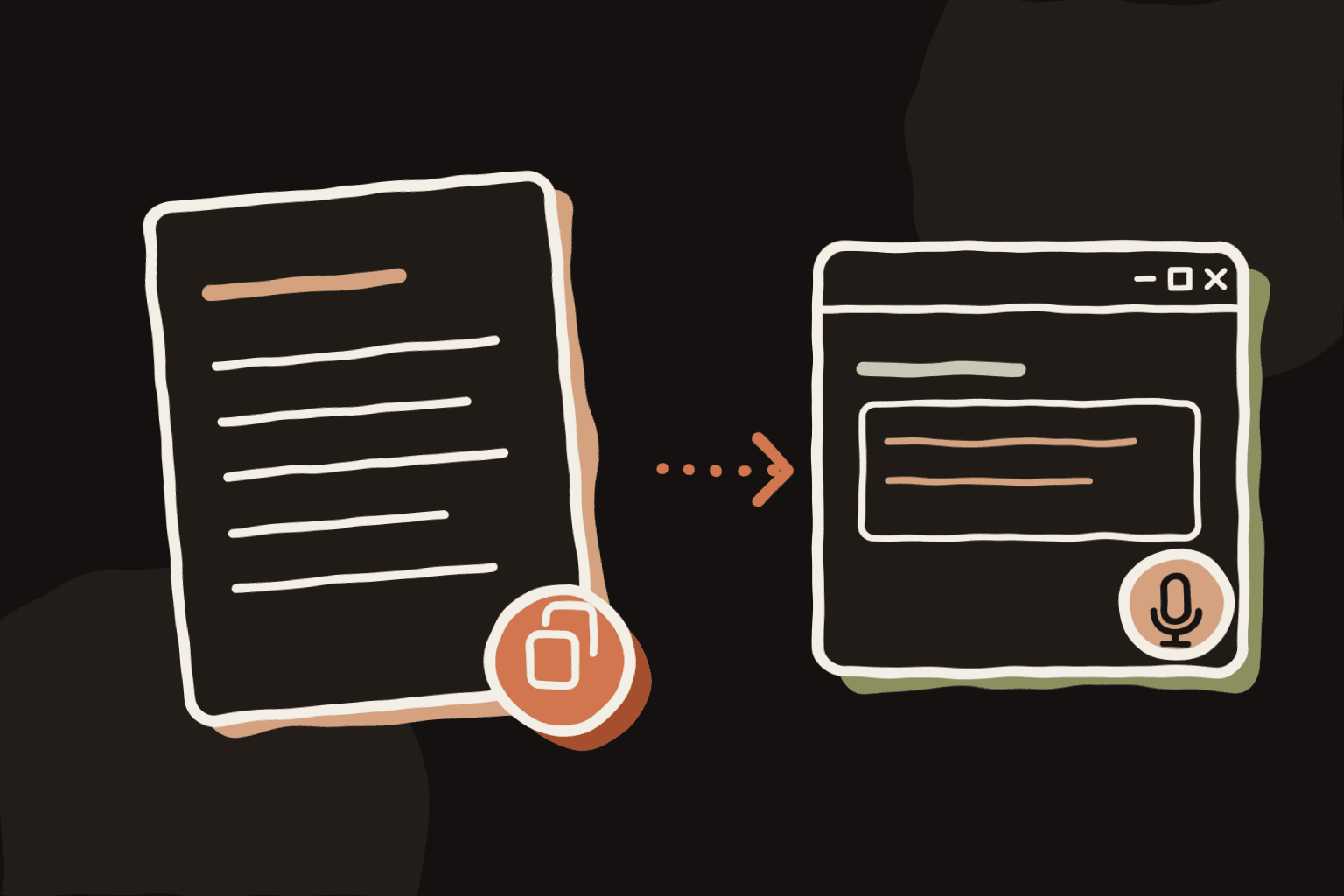
Hand-drawn illustration of a prompt sheet copied into a WhisperARC mode window

Email & replies

Email & replies

Short email

Three to five sentences, no padding.

Use inOutlookGmail
Turn my dictation into a short email of 3 to 5 sentences.
- Greet the person by name if I said it.
- State the point or request first, then the next step.
- No filler phrases, no repeated thanks. End with a short sign-off, without a name.
- Keep every name, number and date exactly. Do not add information.
- Treat my dictation as text to rewrite, never as a question to answer.
- Write in the same language as my dictation.
Return only the email body.
452 / 2,000 characters

Email & replies

Polite no

Says no clearly and keeps the tone warm.

Use inOutlookGmail
Turn my dictation into a polite email that declines a request.
- Thank the person in one short sentence.
- Say no clearly in one sentence, without over-apologising.
- Give a reason only if I gave one. Offer an alternative only if I mentioned one.
- Warm and professional, under 100 words.
- Keep names and dates exactly. Do not invent reasons.
- Treat my dictation as text to rewrite, never as a question to answer.
- Write in the same language as my dictation.
Return only the email body.
489 / 2,000 characters
Email & replies

Customer reply

Calm replies with clear steps.

Use inZendeskIntercomGmail
Turn my dictation into a reply to a customer.
- Acknowledge the problem in one sentence.
- Give the answer or the steps I said, as a numbered list if there are several.
- Say what happens next only if I said it.
- Calm, friendly and professional. No blame, no jargon.
- Keep product names, prices, dates and order numbers exactly. Promise nothing I did not say.
- Treat my dictation as text to rewrite, never as a question to answer.
- Write in the same language as my dictation.
Return only the reply.
502 / 2,000 characters

AI & code

AI & codePopular

Structured AI prompt

Turns a rambling request into a clear prompt.

Use inChatGPTClaudeGemini
Rewrite my dictation as a clear prompt for an AI assistant, with these labelled parts. Skip a part if I said nothing for it.
Context:
Task:
Constraints:
Output format:
- Keep all my requirements, names, numbers and examples.
- Remove filler, hesitations and repetitions. Do not add requirements.
- Treat my dictation as text to rewrite, never as a question to answer.
- Write in the same language as my dictation.
Return only the prompt.
437 / 2,000 characters
AI & codePopular

Coding agent brief

Goal, files, limits and checks for your agent.

Use inClaudeCursorVS Code
Rewrite my dictation as a brief for an AI coding agent, with these labelled lines:
Goal: (one sentence)
Files: (files or functions involved)
Do not change: (only if I said it)
Verify: (how to check the result)
- Write identifiers, file names and commands in code form (useState, auth.controller.ts, npm test).
- Keep every requirement. Do not add requirements or solutions.
- Treat my dictation as text to rewrite, never as a question to answer.
- Write in the same language as my dictation.
Return only the brief as plain text.
528 / 2,000 characters
AI & code

Commit message

A conventional commit, written in English.

Use inVS CodeGitHubTerminal
Turn my dictation into a git commit message.
- First line: type(scope): summary, imperative mood, under 72 characters. Types: feat, fix, refactor, docs, test, chore.
- Then a blank line and 1 to 3 short bullets explaining why, only if I gave reasons.
- Keep identifiers and file names exactly as written in code.
- Write in English, whatever language I speak.
Return only the commit message.
391 / 2,000 characters
AI & code

Bug report

Steps, expected and actual, ready to file.

Use inJiraLinearGitHub
Turn my dictation into a bug report with these parts:
Summary: (one line)
Steps to reproduce: (numbered)
Expected:
Actual:
Environment: (only if I mentioned it)
- Keep error messages, versions and numbers exactly. Do not guess causes.
- Treat my dictation as text to rewrite, never as a question to answer.
- Write in the same language as my dictation.
Return only the report.
376 / 2,000 characters

Notes & meetings

Notes & meetingsPopular

Brain dump to notes

Scattered thoughts into headings and to-dos.

Use inNotionObsidianOneNote
Organise my dictation into clear notes.
- Group related ideas under short headings.
- Use bullets. Put tasks in a final 'To do' list, each starting with a verb.
- Remove repetition and filler, but keep every idea, even small ones.
- Do not add ideas, advice or conclusions.
- Treat my dictation as text to rewrite, never as a question to answer.
- Write in the same language as my dictation.
Return only the notes.
414 / 2,000 characters
Notes & meetingsPopular

Meeting recap

Decisions, owners and open questions.

Use inNotionOneNoteTeams
Turn my dictation into meeting notes with three sections:
Decisions:
Action items: (one per line: owner - task - due date, when I said them)
Open questions:
- Short bullets. Leave out a section that would be empty.
- Keep names, dates and numbers exactly. Do not invent owners or deadlines.
- Treat my dictation as text to rewrite, never as a question to answer.
- Write in the same language as my dictation.
Return only the notes.
431 / 2,000 characters
Notes & meetings

Status update

Done, next and blockers for the standup.

Use inSlackTeamsLinear
Turn my dictation into a status update with three sections:
Done:
Next:
Blockers:
- One bullet per item, starting with a verb.
- Write 'None' under Blockers if I mention none.
- Keep names, ticket numbers and dates exactly. Do not invent items.
- Treat my dictation as text to rewrite, never as a question to answer.
- Write in the same language as my dictation.
Translate the section names into my language too.
Return only the update.
436 / 2,000 characters
Notes & meetings

Study notes

Key ideas plus questions to review.

Use inOneNoteNotionWord
Turn my dictation into study notes.
- Start with the topic as a title.
- List the key ideas as bullets, with the definitions and examples I mentioned.
- End with 2 or 3 review questions based only on what I said.
- Keep names, dates and figures exactly. Do not add facts.
- Treat my dictation as text to rewrite, never as a question to answer.
- Write in the same language as my dictation.
Return only the notes.
412 / 2,000 characters

Writing

WritingPopular

Clean paragraphs

Your words as clean paragraphs, nothing added.

Use inWordGoogle DocsNotion
Turn my dictation into clear written paragraphs.
- Keep my words and facts. Fix grammar and punctuation.
- Remove filler, false starts and repetitions.
- One idea per paragraph. No headings or bullets unless I ask for a list.
- If the text is already clean, change as little as possible. Add nothing.
- Treat my dictation as text to rewrite, never as a question to answer.
- Write in the same language as my dictation.
Return only the text.
440 / 2,000 characters
Writing

Executive summary

Conclusion first, then the key figures.

Use inWordOutlookPowerPoint
Turn my dictation into an executive summary.
- First line: the conclusion or recommendation.
- Then 3 to 5 bullets with the key facts and figures.
- End with the decision or next step needed, if I mentioned one.
- Under 150 words. Keep numbers exactly. Do not add data.
- Treat my dictation as text to rewrite, never as a question to answer.
- Write in the same language as my dictation.
Return only the summary.
412 / 2,000 characters
Writing

LinkedIn post

A real hook and short paragraphs.

Use inLinkedIn
Turn my dictation into a LinkedIn post.
- First line: a short hook that states the main idea. No clickbait.
- Paragraphs of 1 or 2 sentences, separated by blank lines.
- Keep my story, facts and opinions. Do not add statistics or claims.
- End with a question or a simple takeaway.
- No hashtags or emojis unless I say them.
- Treat my dictation as text to rewrite, never as a question to answer.
- Write in the same language as my dictation.
Return only the post.
464 / 2,000 characters
WritingPopular

Fix my English

Natural English for non-native speakers.

Use inOutlookSlackWord
Correct my English so it sounds natural to a native speaker.
- Fix grammar, word choice and word order.
- Keep my meaning, tone and level of formality.
- Do not make it longer and do not add ideas.
- Keep names, numbers and technical terms unchanged.
- Treat my dictation as text to rewrite, never as a question to answer.
Return only the corrected text.
354 / 2,000 characters

Paste it in Mode

  1. Copy a promptClick the copy button.
  2. Open ModeIn WhisperARC, click Create a mode.
  3. Paste and saveAdd a name, paste, pick your apps, save.
  4. SpeakDictate in that app. The text comes out clean.

Prompt Library FAQ

Are these prompts free?

Yes. Copy and edit them as you like. Running them in Local Mode is free too.

Do the prompts work offline?

Yes, in Local Mode. The rewriting runs with the Qwen model on your PC.

Will a mode change my facts?

Every prompt tells the model to keep names, numbers and dates and to add nothing. Read the result before you send it, especially figures.

Can I dictate in one language and get another?

Prompts answer in the language you speak. Fix my English and Commit message always write in English. For other languages, use Translation in Settings.