Why voice suits coding agents
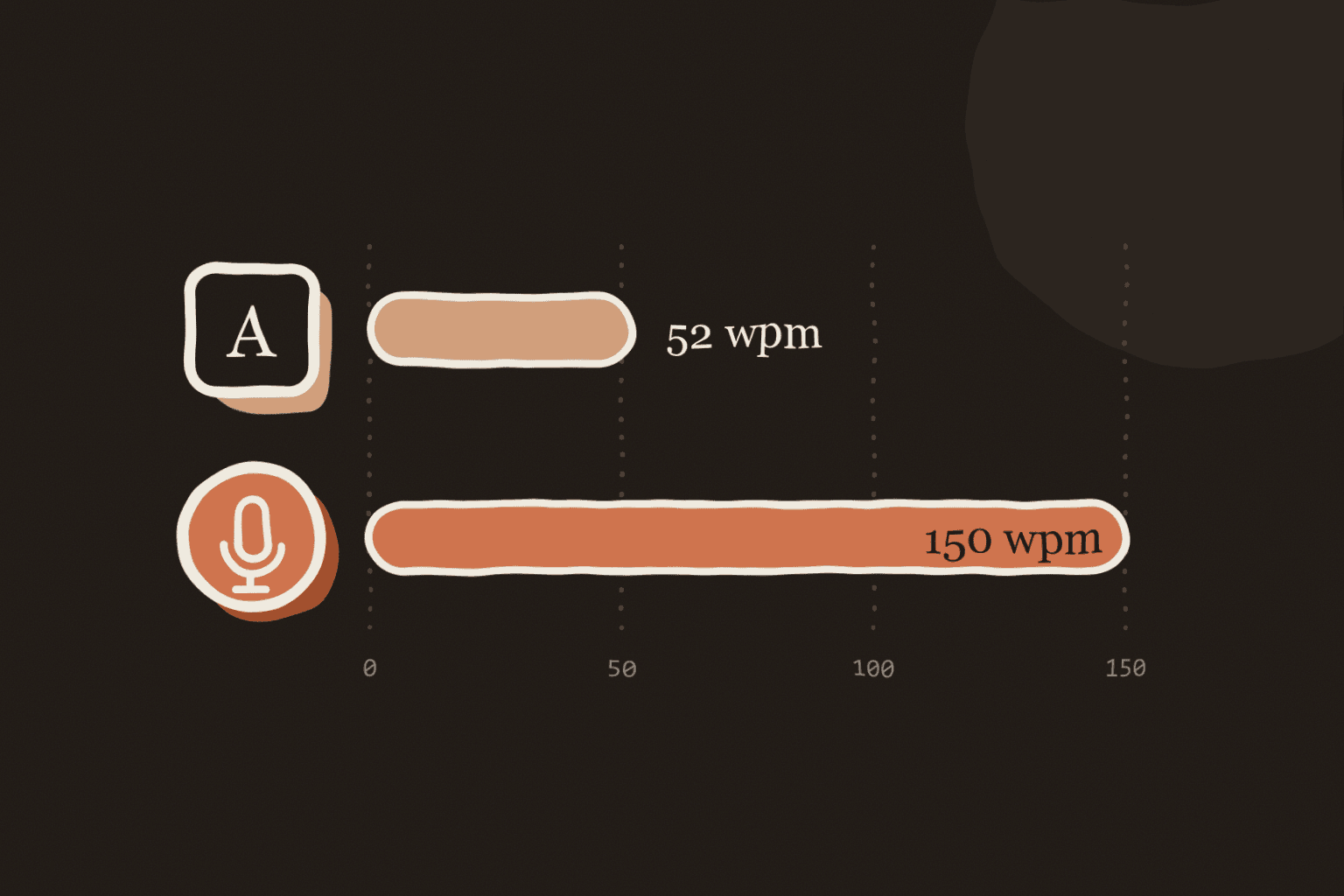
With an agent, you write more English than code. A good prompt explains the goal, the files involved, what must not change and how to check the result. Most people shorten that when typing. Speaking removes the cost of adding context.
The risk is the opposite: spoken prompts ramble. Repetitions and false starts cost tokens and can confuse the agent. The fix is a short cleanup step between your voice and the prompt.
What the tools offer on their own
Claude Code added a voice mode in March 2026. Turn it on with /voice, hold the space bar to talk and release to send. The audio is processed online, and the language follows Claude Code's settings.
VS Code has the VS Code Speech extension. Its model runs on the PC after a first download and supports more than 20 languages. Voice chat with Copilot also needs a GitHub Copilot subscription.
These options work inside one tool. A system-wide dictation app works in all of them, and in Windows Terminal, the browser and your issue tracker too.
Dictate a prompt the agent can act on
Click in the prompt box or the terminal. Hold the WhisperARC shortcut, speak the whole request, then release. Say the structure out loud: goal, files, constraints, how to verify.
Name files and functions plainly. Say "in auth controller dot ts" rather than describing where the file is. Check the prompt once before you send it.
Fix the login redirect in auth controller dot ts. After sign in, users should land on the page they came from, not the dashboard. Don't change the session code. Add one test for the redirect and run the existing auth tests.
Strip the filler with Code mode
WhisperARC includes a Code mode that rewrites a dictation into concise, precise instructions for AI agents. Link it to Windows Terminal, VS Code or Cursor under Mode, and it applies automatically when you dictate there.
Shorter prompts cost fewer tokens. Studies of prompt compression report around 30 percent fewer tokens with output close to the original, and spoken prompts carry more filler than typed ones. Review the rewritten prompt: a mode can change wording, so check names and numbers.
Keep identifiers spelled right
Speech models write words, not code. useState can come out as "use state", and your product name as something close to it. Add a custom spelling for each term you say often: Heard as "use state", Write as "useState".
Use a project glossary for one codebase's names, so they do not leak into your other work. Rules apply from the next recording.
A setup that holds up all day
Use Hold mode for prompts: hold the shortcut, speak, release. Use Press mode for long specifications so you can pause and think. Local Mode keeps your code descriptions on your PC; Cloud and your own OpenAI key are online options.
- Link Code mode to the apps where you prompt agents.
- Add a project glossary for the repository's names.
- Keep the keyboard for code edits and the voice for instructions.